Unpacking and Repacking Guide
1. Launch Bootly
After running Bootly, it will automatically create three folders in its directory:
input/ - Place your boot.img or recovery.img files hereoutput/ - Your repacked images will be saved hereworking/ - Temporary working directory
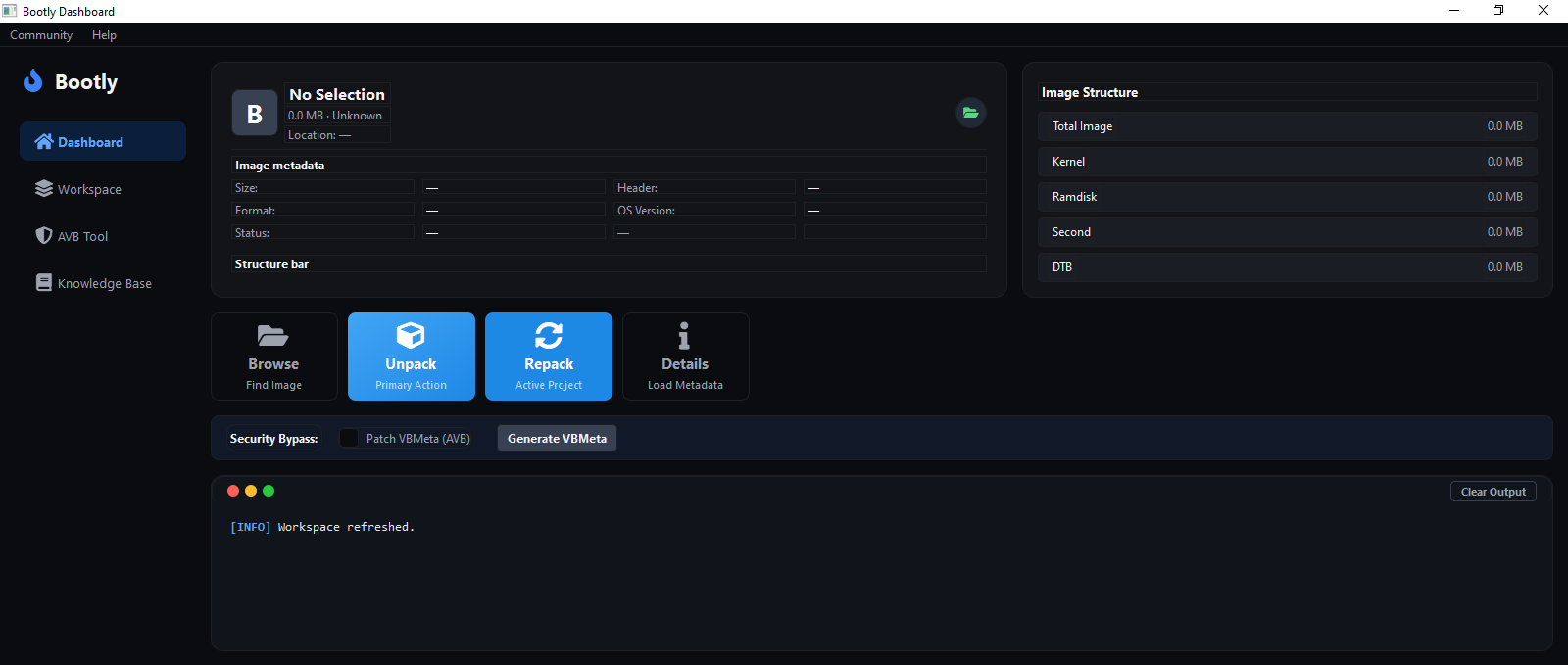
2. Select Your Image File
- Click the Browse button to open the file picker.
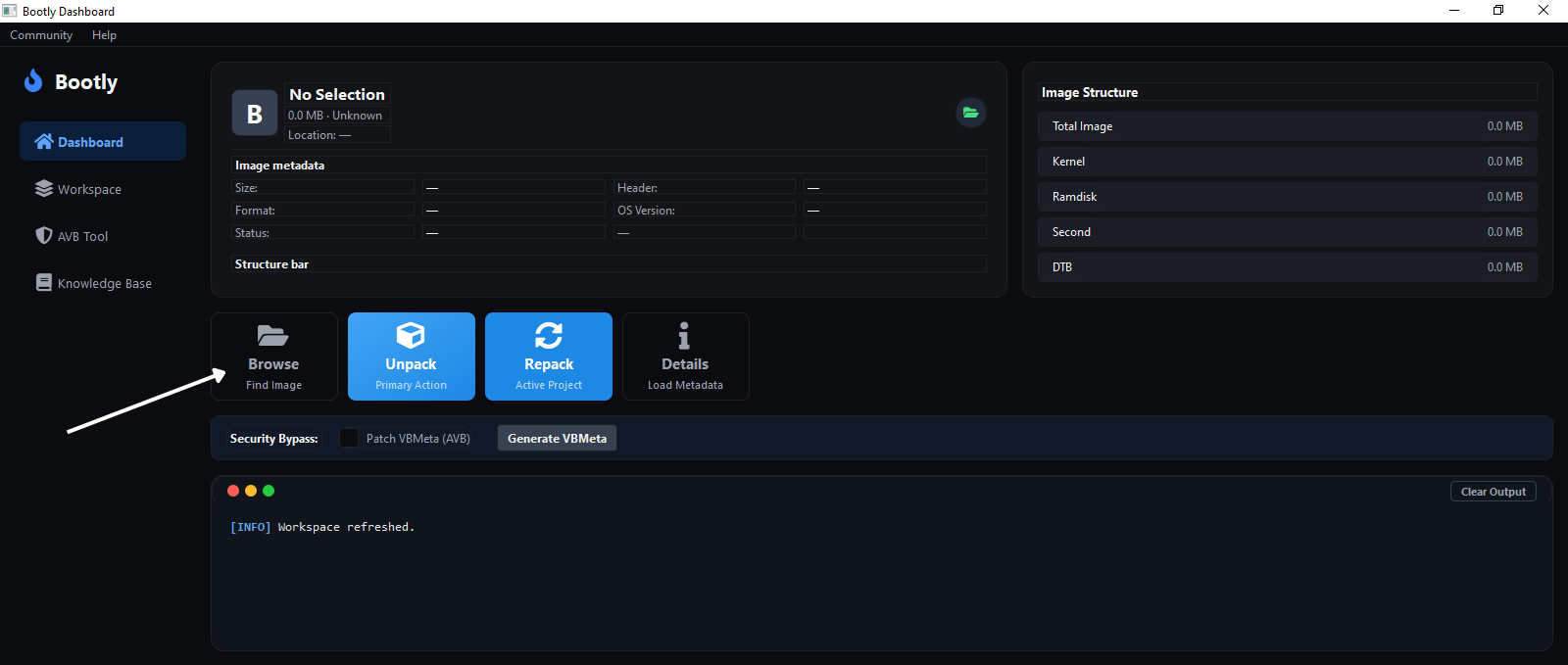
- The file manager will appear. Navigate to your
boot.img or recovery.img file and select it.
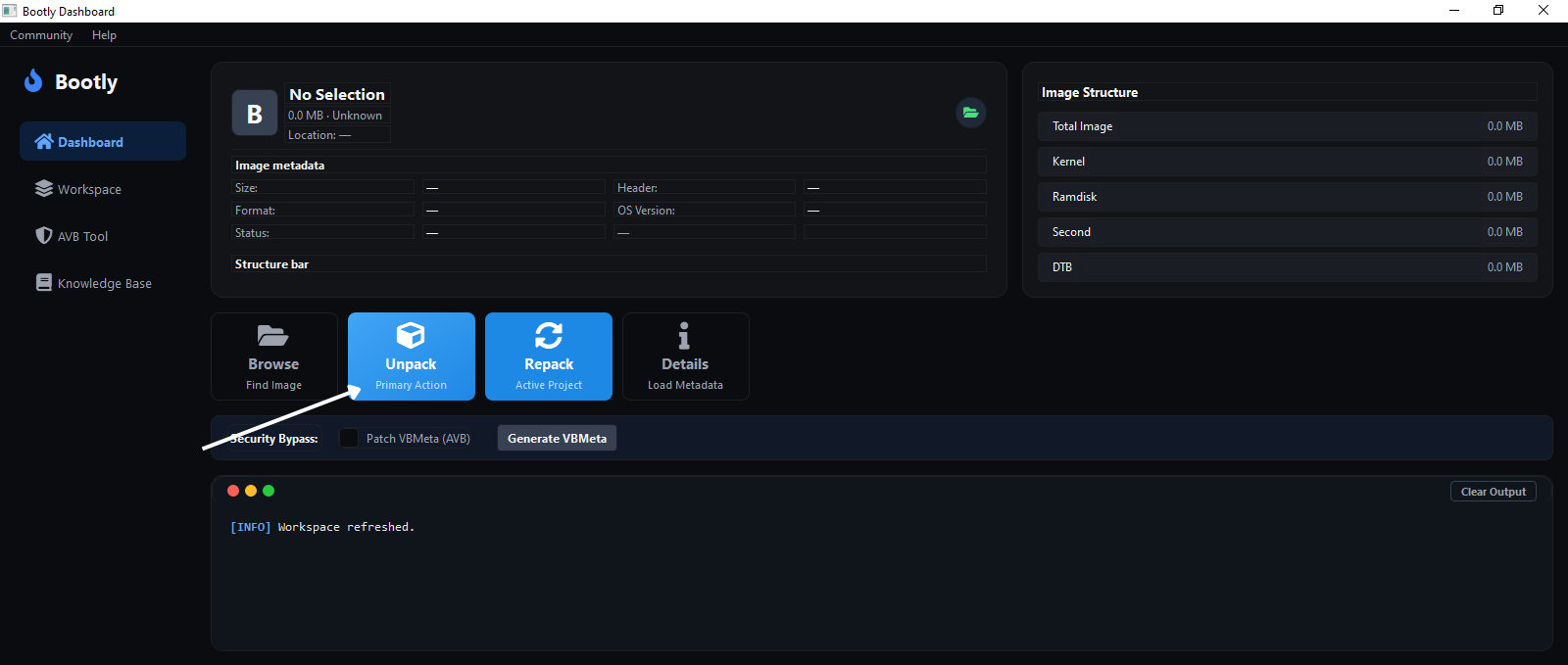
3. Unpack the Image
- Press the Unpack button to begin extracting the image contents.
- Once unpacking is complete, a popup will appear asking to open the folder where the image is extracted.
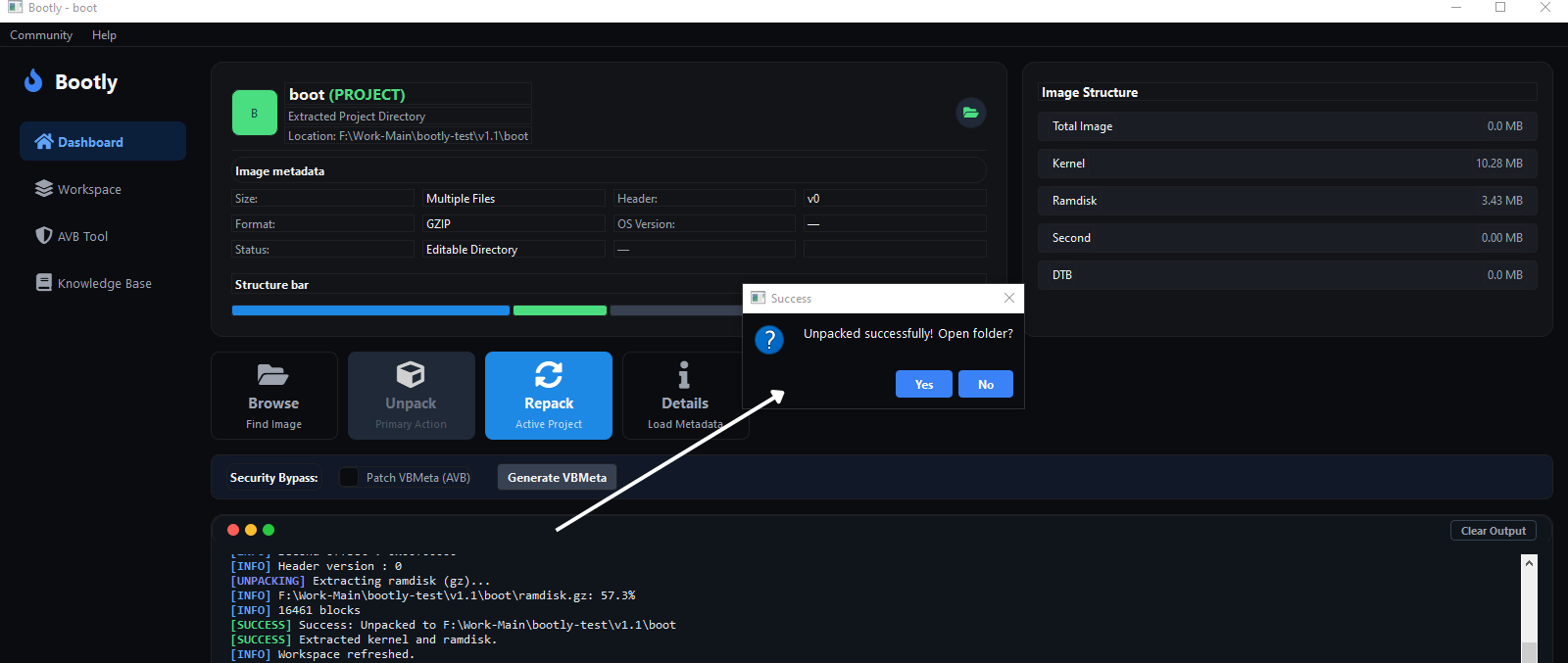
- Click Yes to open the extracted folder. You will also see the extracted image directory in the Workspace Explorer panel.
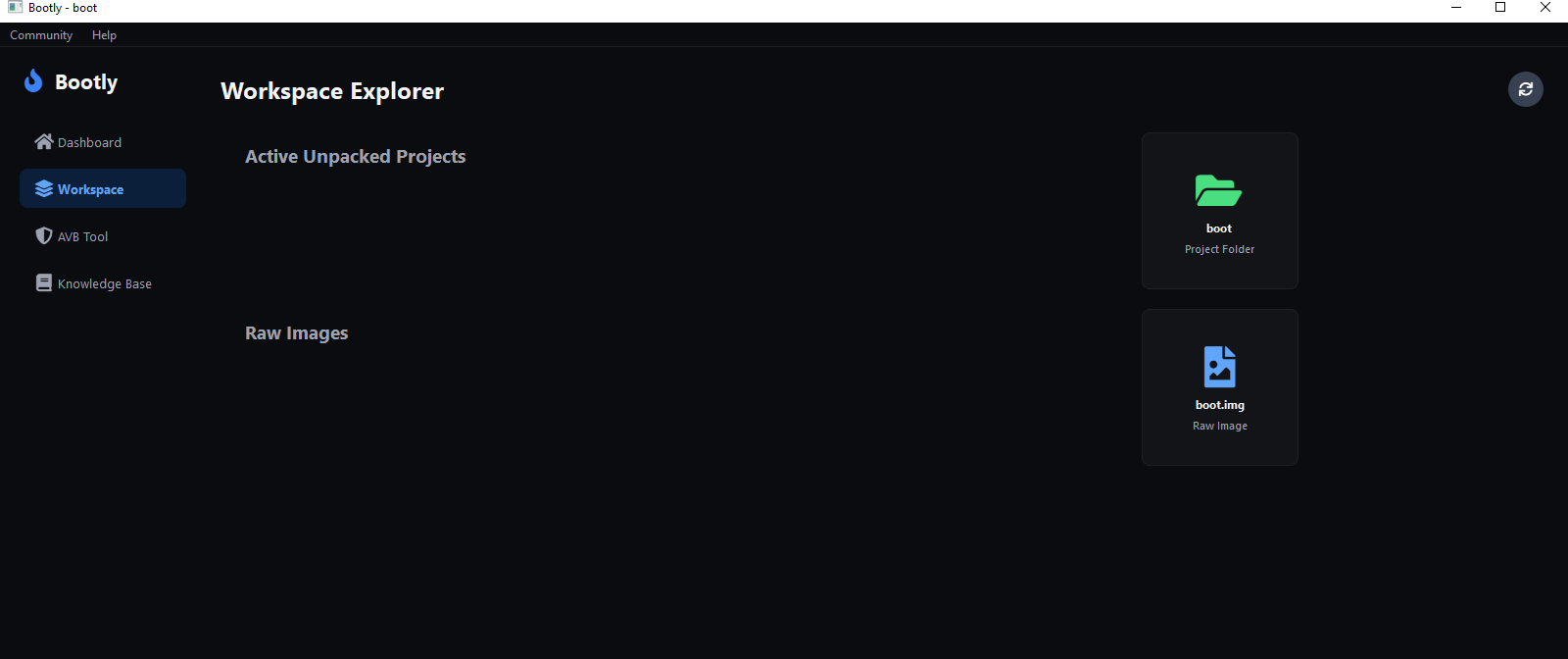
4. Modify Extracted Files
Tip: Common modifications include:
- Editing
/init.rc for system configurations
- Modifying build.prop files
- Replacing kernel binaries
- Updating ramdisk components
5. Repack the Image
- After completing your modifications, go back to Bootly and press the Repack button.
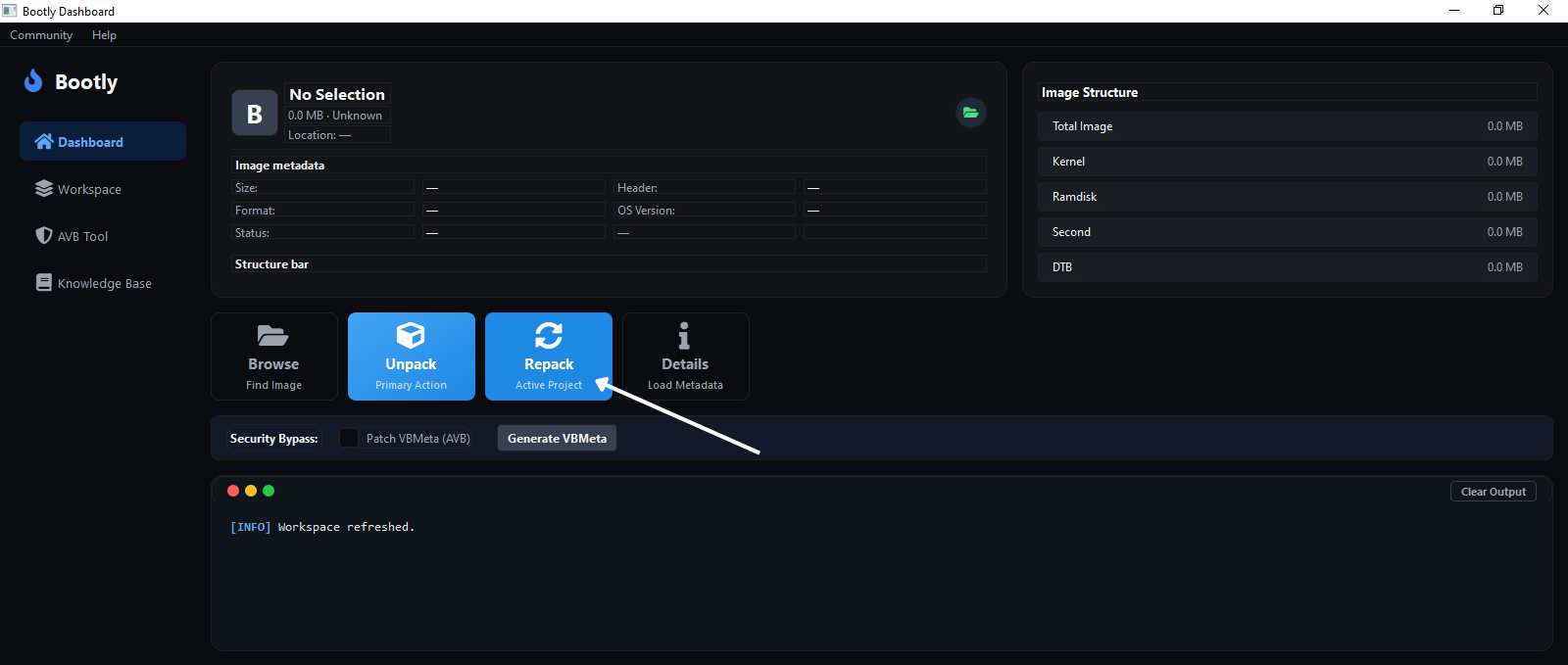
- A dialog box will appear prompting you to enter a filename for your modified image.
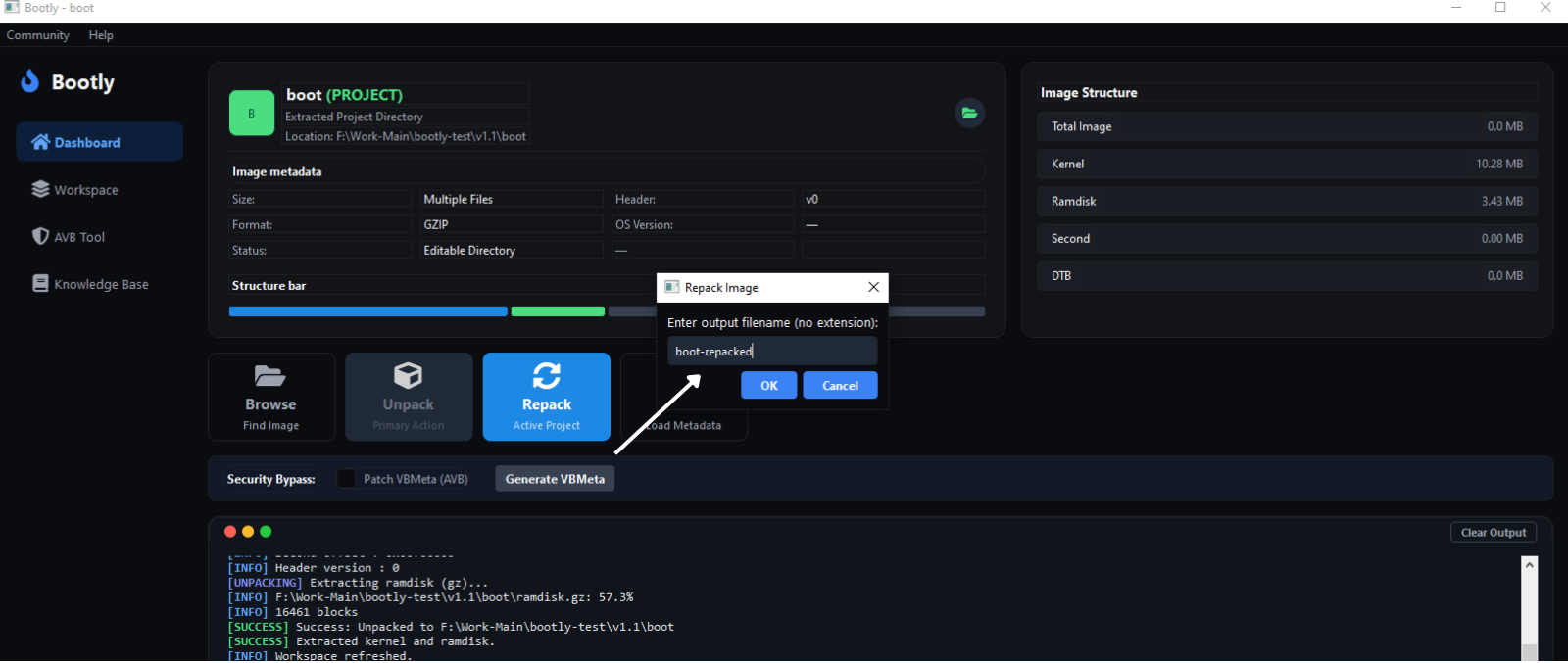
- Enter your desired filename make sure dont add .img bootly automatically add file extension (e.g.,
boot-repacked) and click OK.
6. Completion & Retrieve Your Image
- Bootly will begin repacking your image with the modifications. Once complete, a success popup will appear.
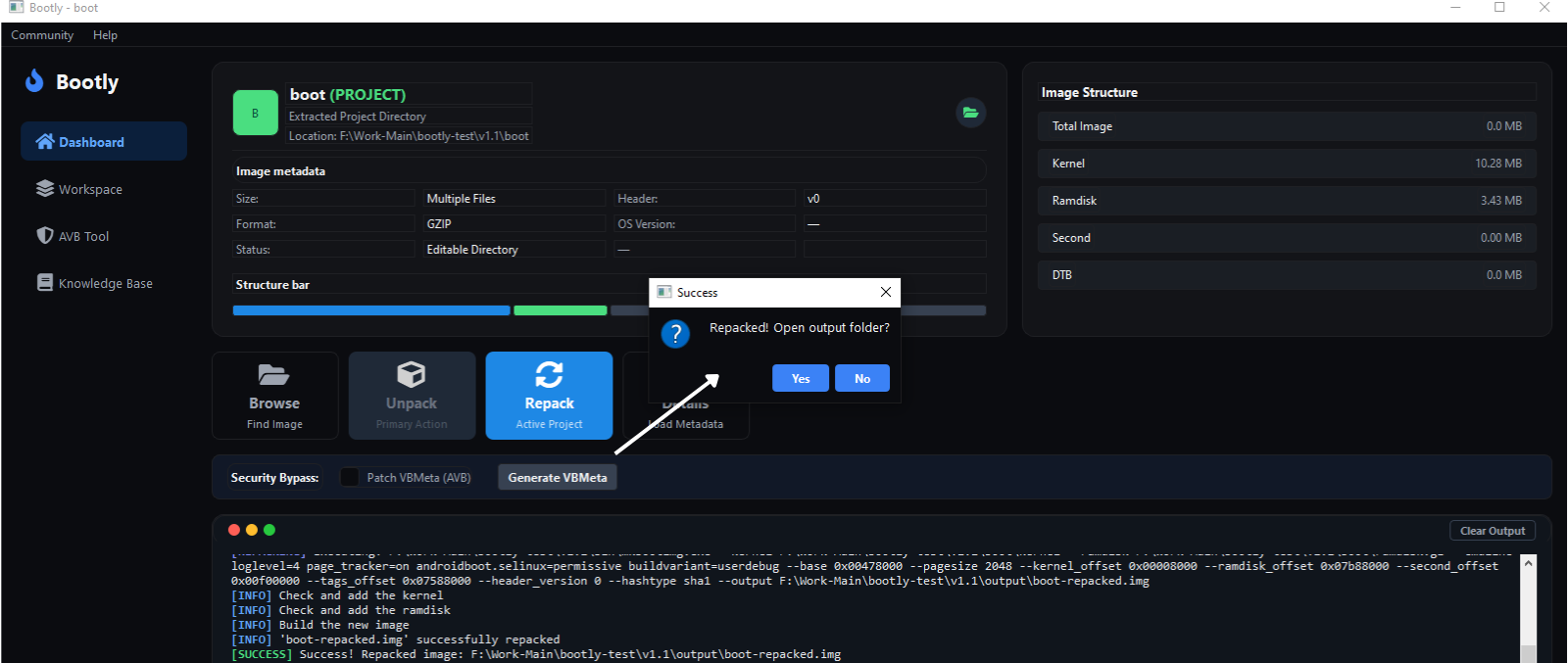
- Click Yes to open the
output/ folder where your new repacked image is saved.
Summary Workflow
1. Launch Bootly
↓
2. Click Browse → Select your img file
↓
3. View image information
↓
4. Click Unpack
↓
5. Modify extracted files as needed
↓
6. Click Repack → Enter filename
↓
7. Retrieve your modified image from output folder
Troubleshooting
Common Issues
Q: "bin/ folder not found" error on Windows
- A: Ensure the
bin/ folder is in the same directory as Bootly-v1.1-windows-x64.exe. Do not separate them.
Q: Image fails to unpack
- A: Verify your image file is a valid boot.img or recovery.img. Corrupted files may fail to unpack.
Q: Repacked image not booting
- A: Double-check your modifications. Ensure critical files were not accidentally deleted or corrupted during editing.
Q: "Python not found" error
- A: Make sure Python 3.x is installed and added to your system PATH.
Resources
Bootly Community
Join the development community, share feedback, and collaborate with other Android modding developers:
Join Community: https://bootly.harislab.tech
🤝 Contributing
Bootly is an open-source project. We welcome contributions, bug reports, and suggestions!
Developed with ❤️ for the Android Community.